 elepay
EC-CUBE Plugin
概要
elepay はEC-CUBE専用のPluginを提供しています。
現時点では、「EC-CUBEダウンロード版」にのみ対応しています。
「EC-CUBEクラウド版」の対応時期は未定です。
プラグインのインストール
elepay for EC-CUBE pluginのインストール方法を紹介します。
- Plugin のダウンロード
以下のリリースページから、最新のpluginをzip方式でダウンロードしてください。
elepay for EC-CUBE v4 (4.2まで)
elepay for EC-CUBE v3
📘 ご注意
ダウンロード済みのzipファイルを解凍しないでください。
v4.2 はまだ対応しておりませんので、最新の v4.1.x をご利用ください。
- EC-CUBEの管理画面に、管理者権限でログインしてください。
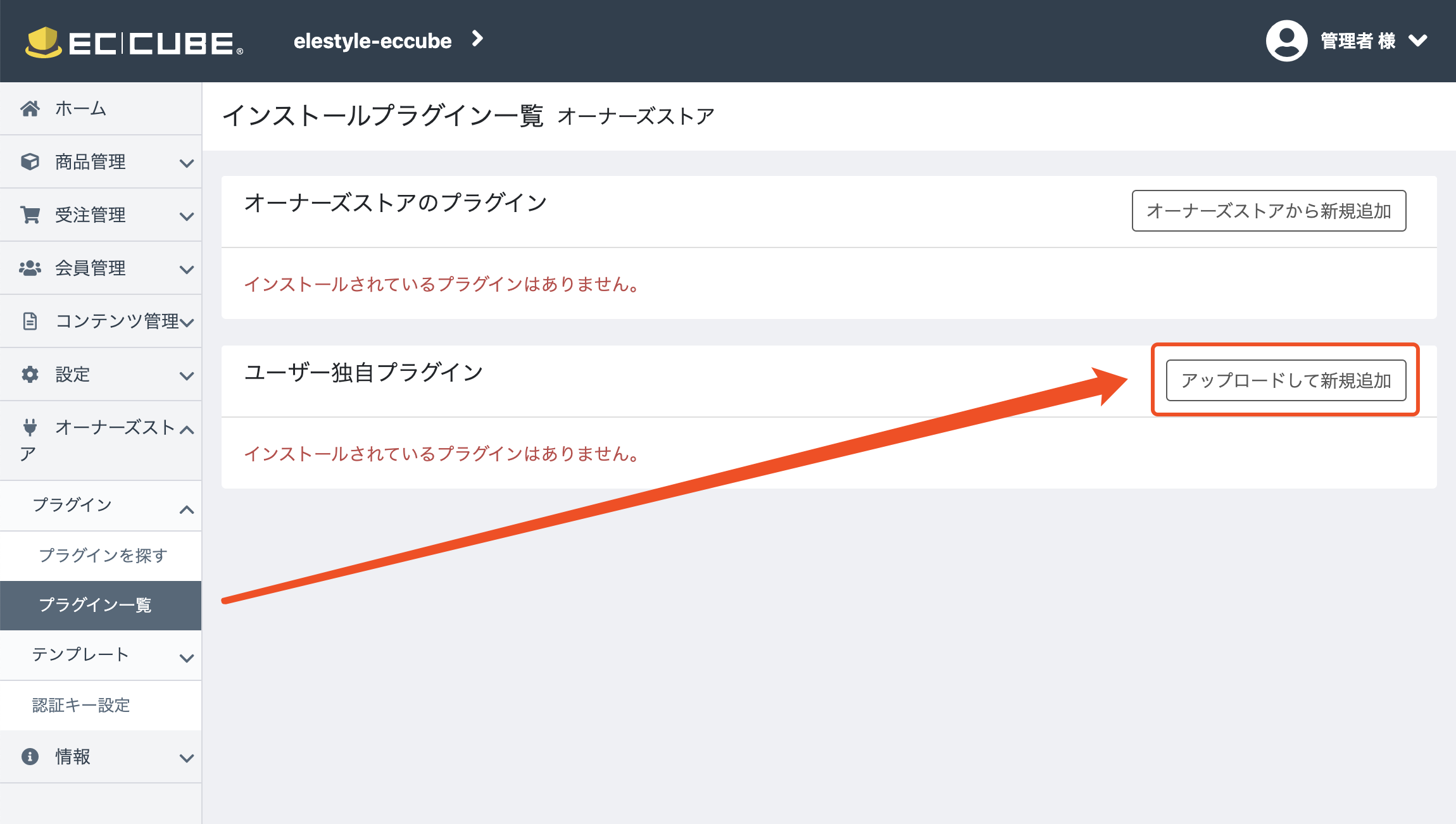
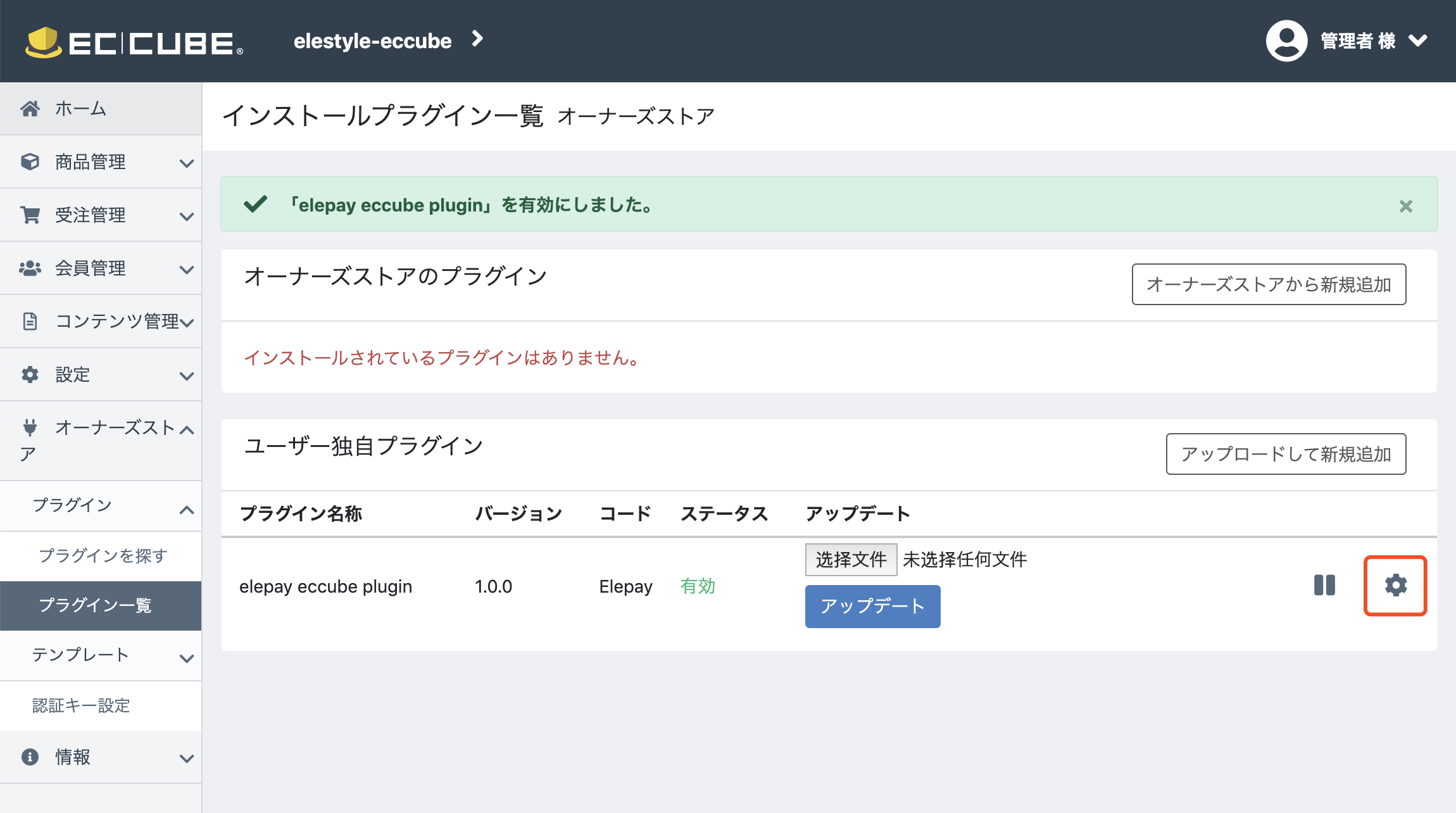
「オーナーズストア」→「プラグイン一覧」→「ユーザー独自プラグイン」→「アップロードして新規追加」ボタンをクリックしてください。
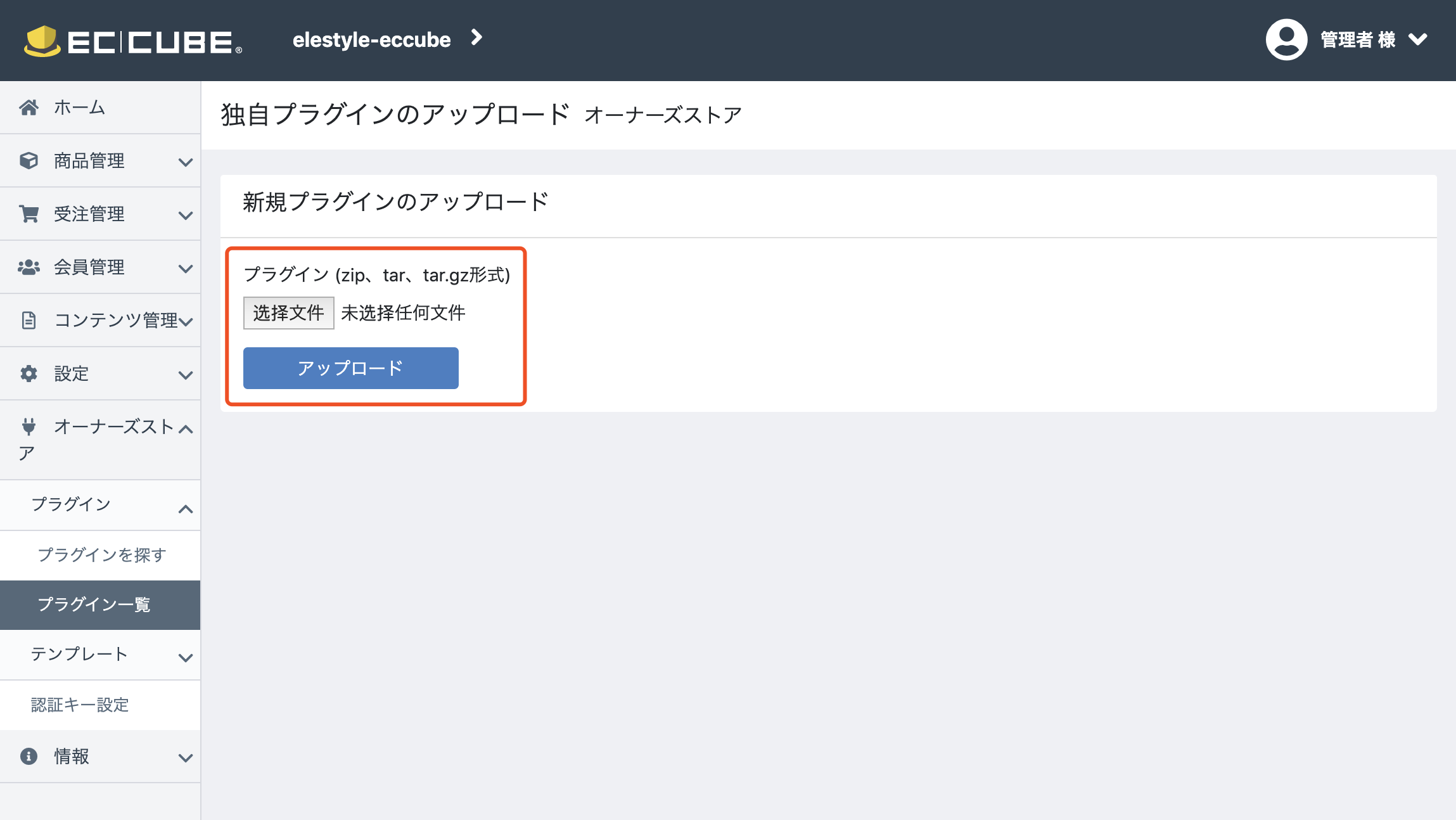
- 「新規プラグインのアップロード画面」にて、STEP 1でダウンロードしたzipファイルをアップロードしてください。
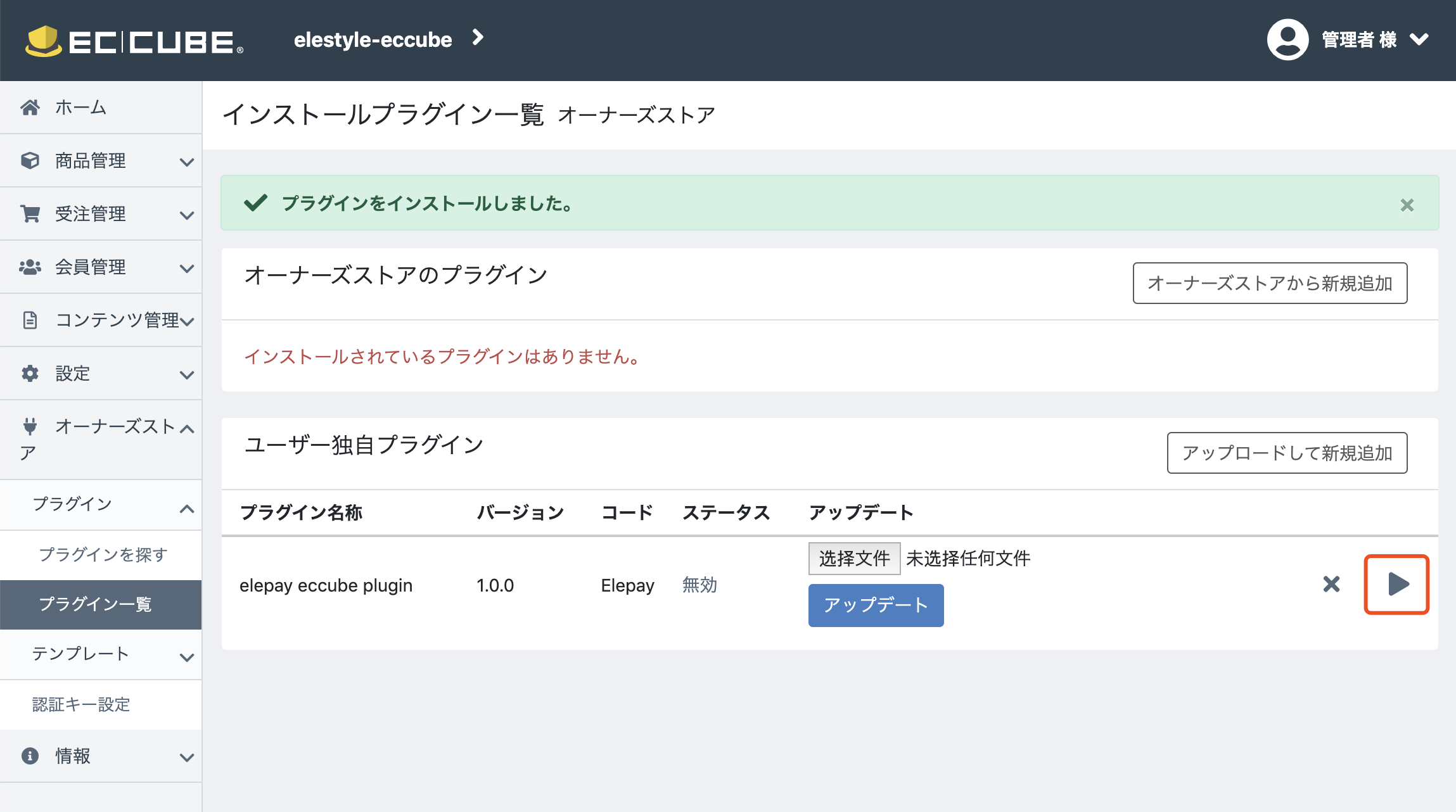
- インストール済みのプラグイン「elepay eccube plugin」を「▶︎」ボタンをクリックして、有効化してください。
- プラグインの「ステータス」が「有効」に表示されましたら、利用可能な状態になります。
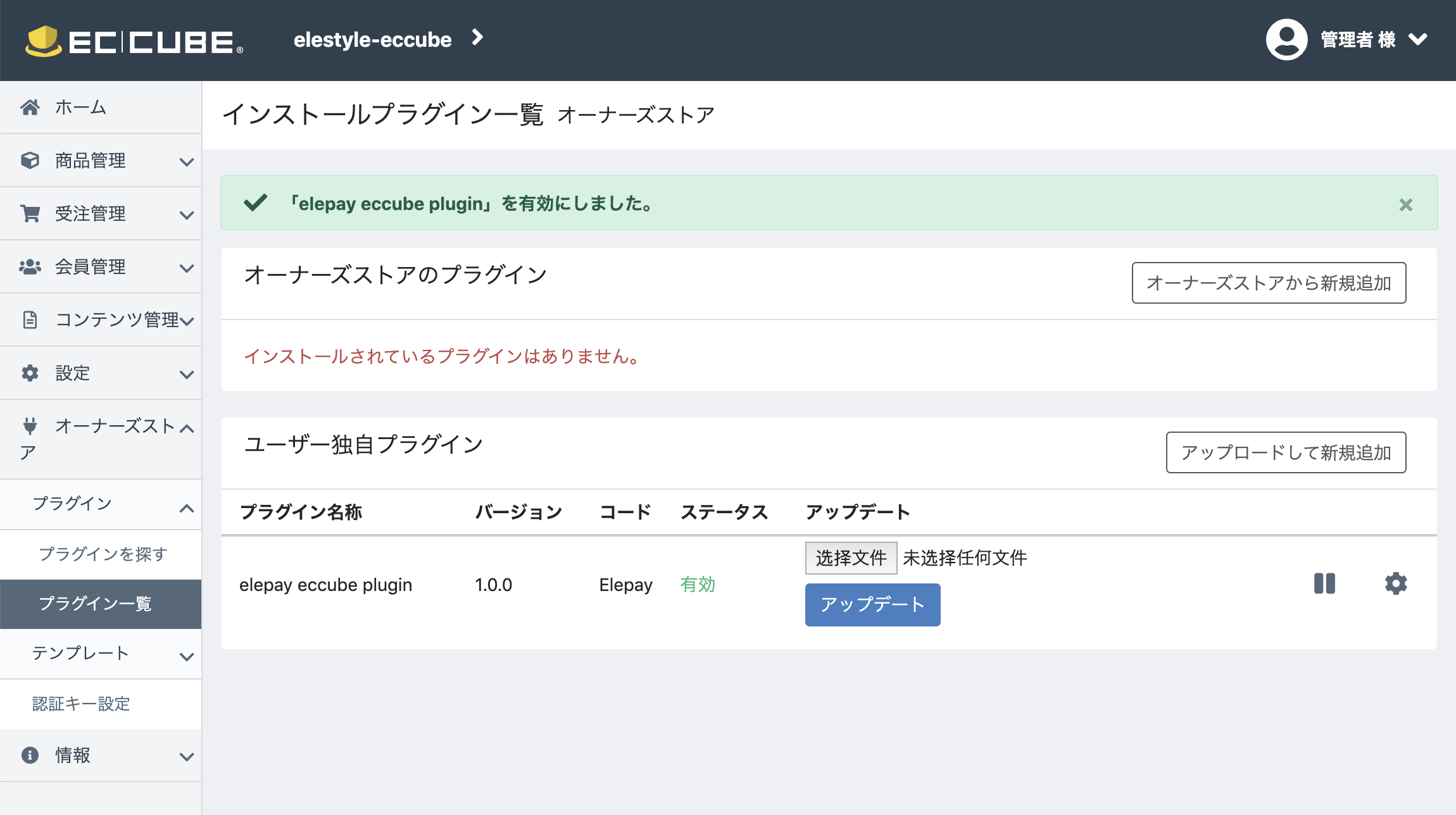
以上でプラグインのインストールが完成しました。
プラグインの初期設定
プラグインの初期設定方法をご紹介します。
- EC-CUBEの管理画面に、管理者権限でログインしてください。
「オーナーズストア」→「プラグイン一覧」→「elepay eccube plugin」→「⚙」をクリックしてください。
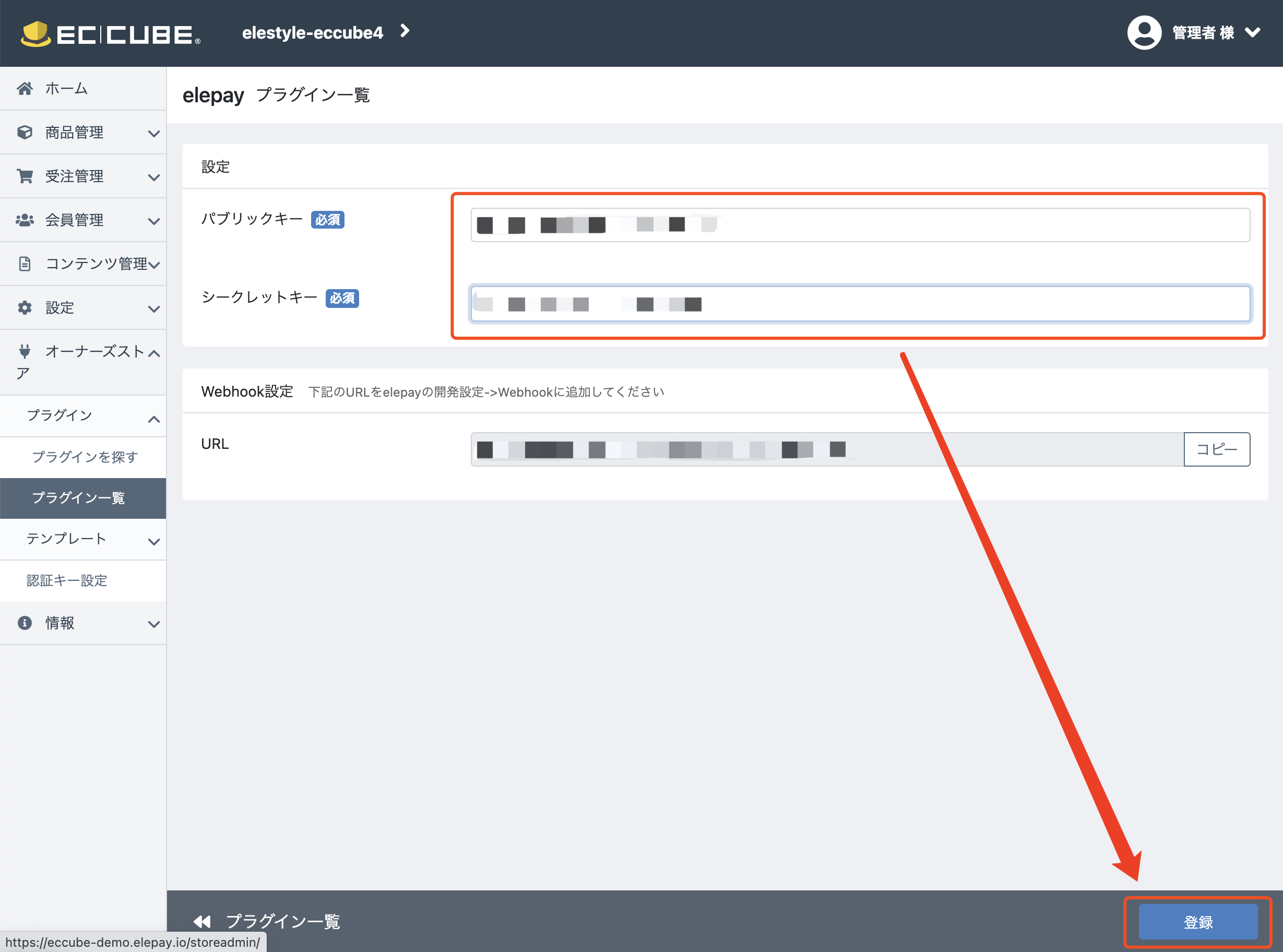
- 「パブリックキー」と「シークレットキー」に、elepay管理画面から取得した開発キーを入力してください。
elepay 発キーの入手方法は「 概要 」へご参照ください。
❗️ ご注意:テスト環境の開発キー(pktest、sktestから始まるキー)をご利用の場合は、実際に決済が行いないため、注文状況に「支払い済み」が表示されていても、絶対に商品を発送しないてください!
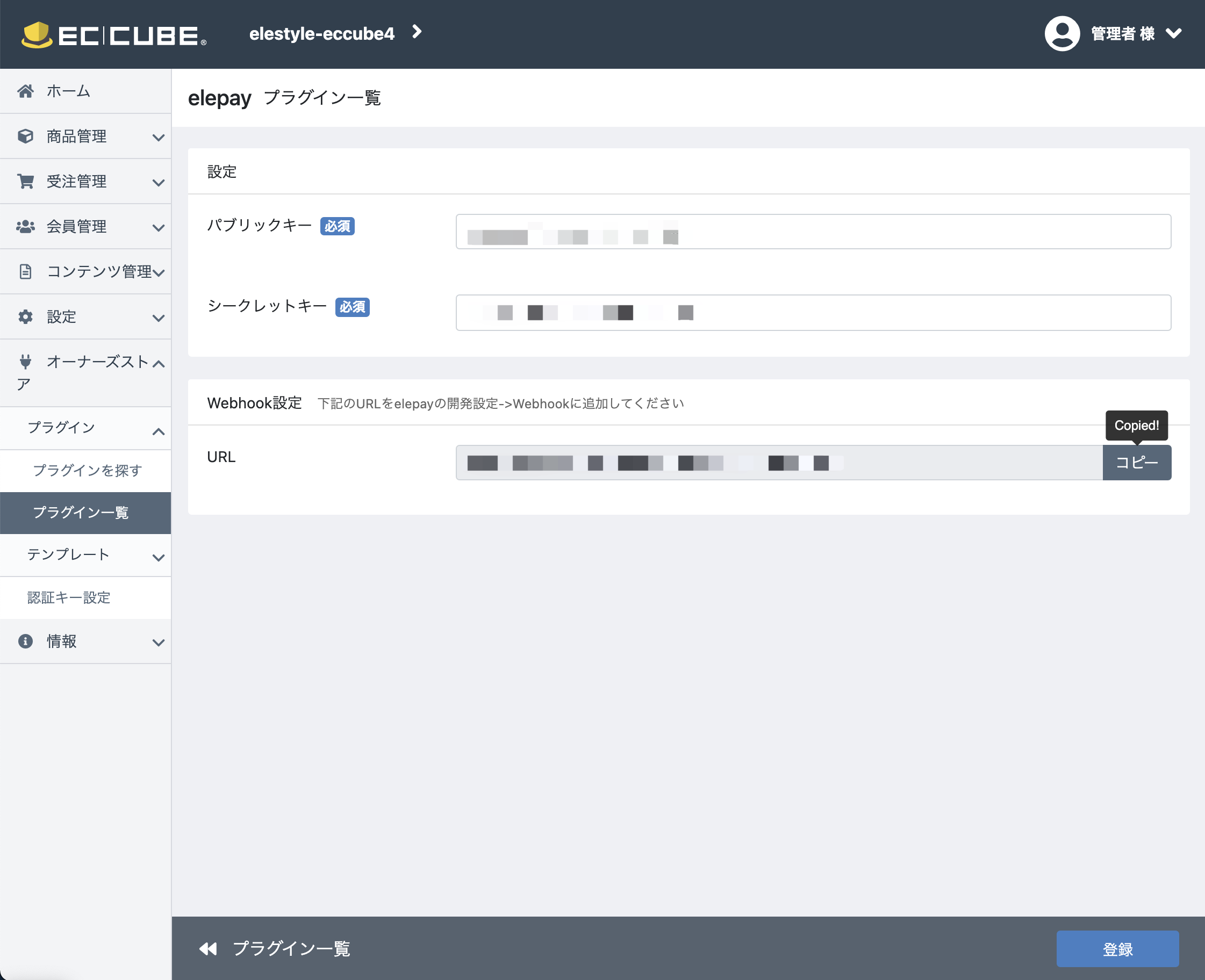
- Webhookリンクをコピーしてください。
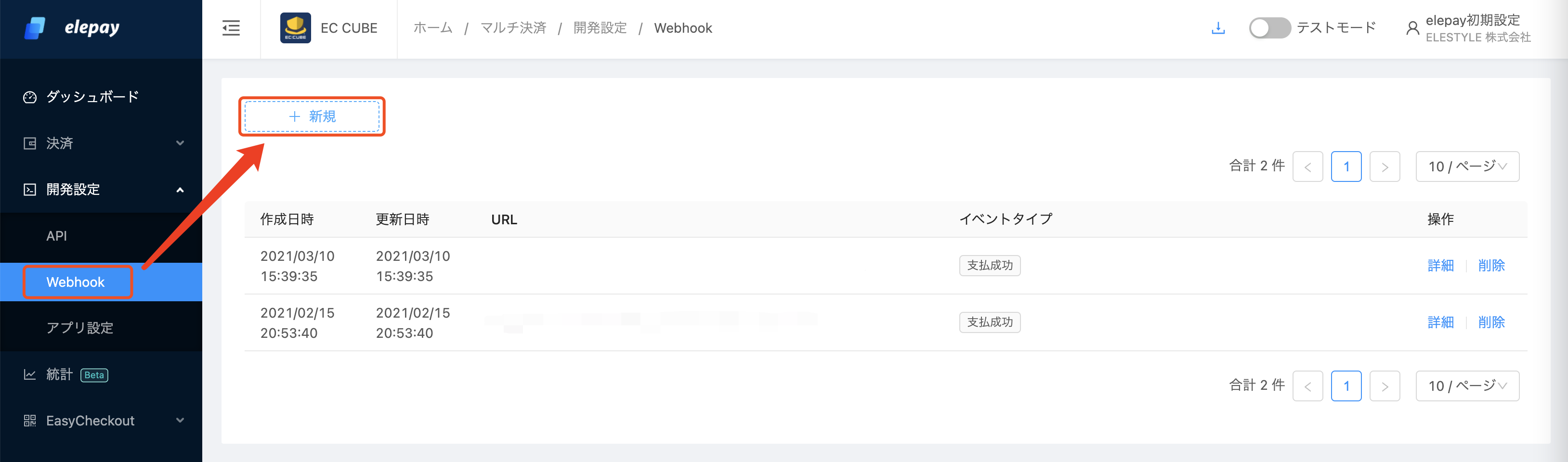
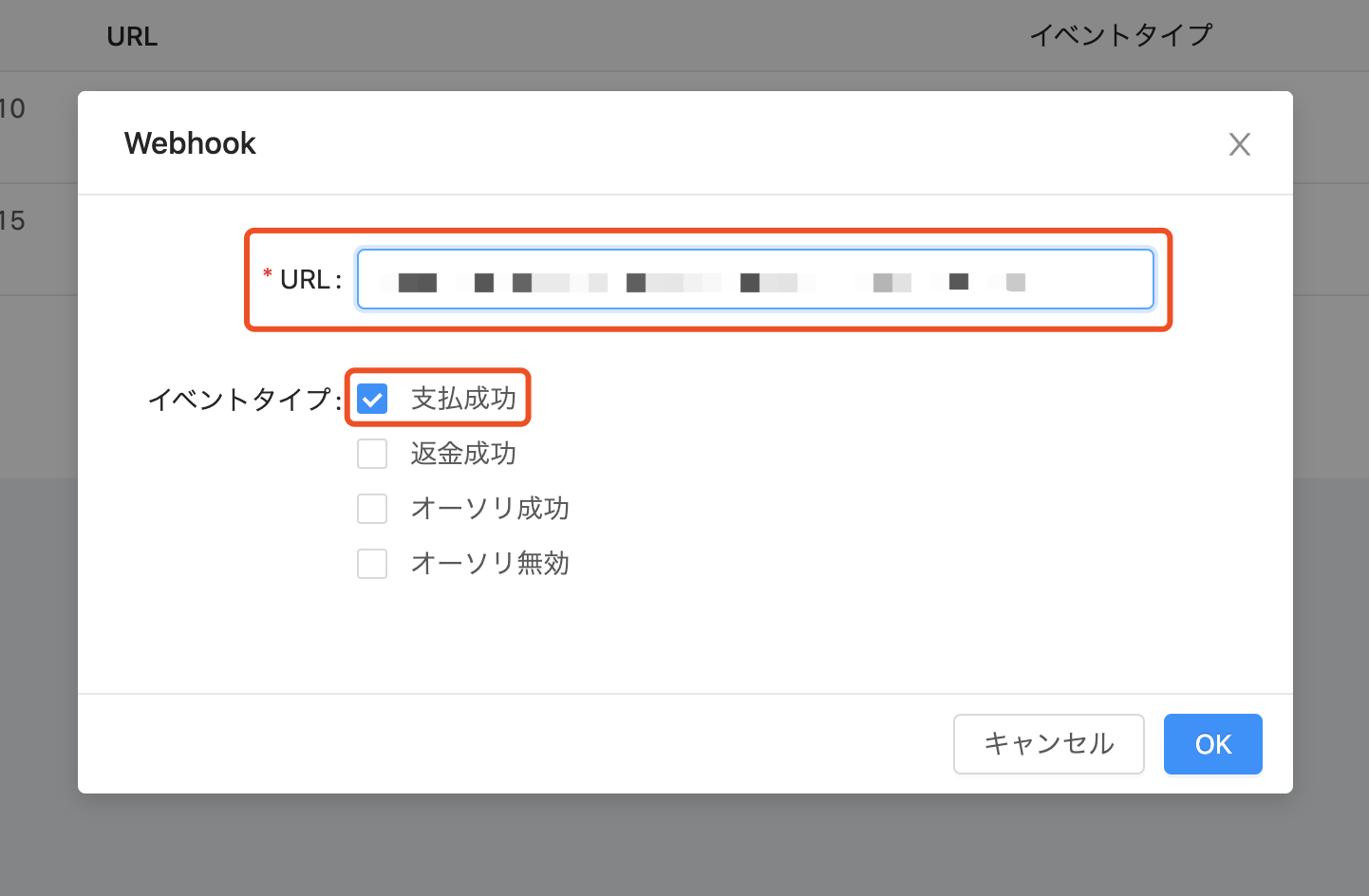
- elepay 管理画面の「開発設定」→「Webhook」にて、「新規」ボタンをクリックしてください。
- STEP 3 にてコピーしたWebhookリンクを「URL」にペーストして、下の「イベントタイプ」にある「支払成功」をチェックしてから、「OK」をクリックしてください。
以上で全ての設定が完了しました。
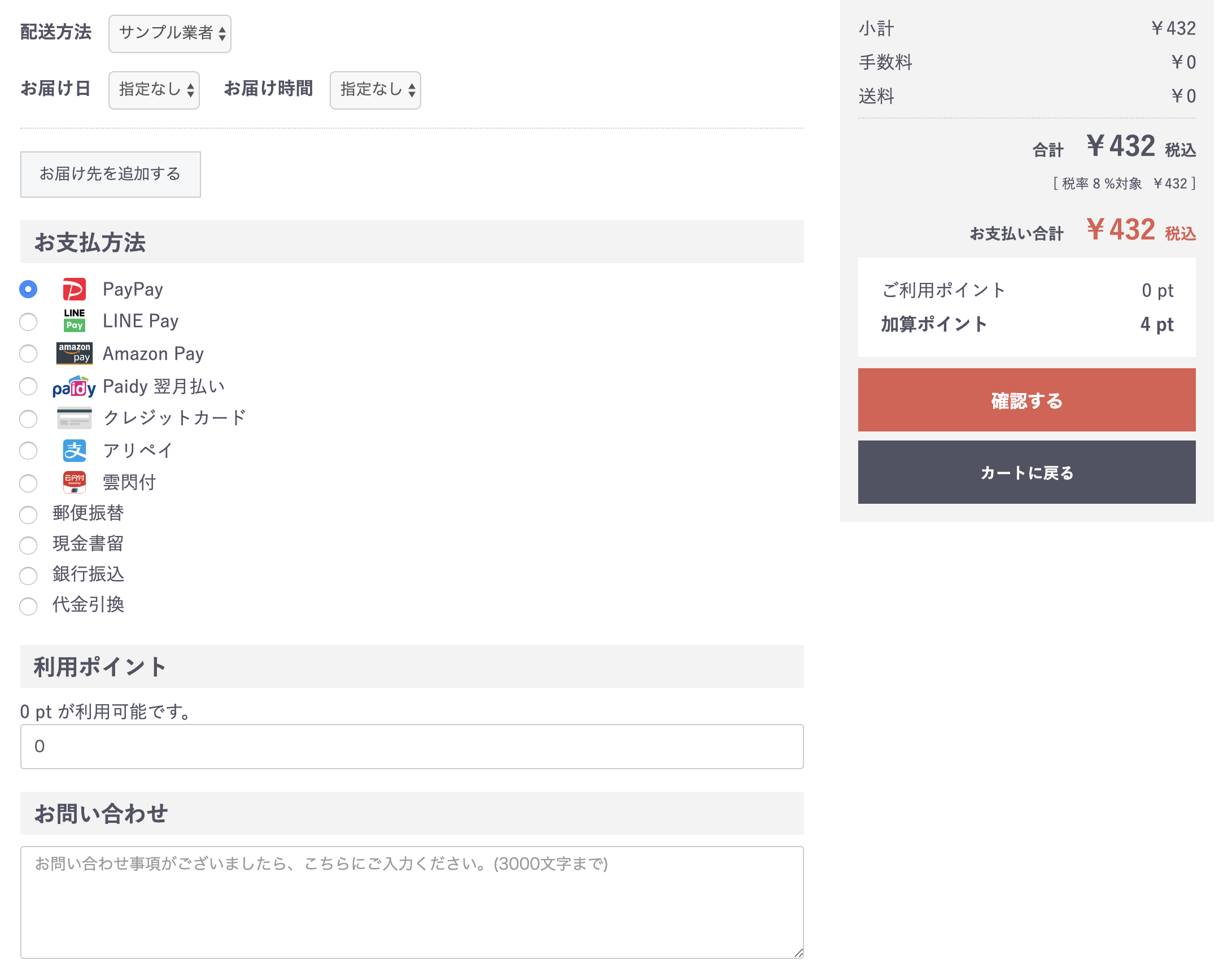
購入者様のEC-CUBEのお支払い方法選択画面から、elepayの決済方法一覧が見れます。
📘 elepayに有効の決済方法のみ表示されます。ブラウザーやデバイスに対応していない決済方法は自動で非表示になります。
最終更新日