 elepay
デバイスにCheckout
固定デバイスで柔軟な決済が可能になるように設定する。
- 導入工数:ローコード、約40分
- 実装スタイル:QRコードの埋め込み
- UIの自由度:制限あり
お客様や店舗スタッフがデバイスを操作し、支払いQRコードを表示するための3つの手順。
ステップ1:商品・サービスの支払い用のEasyQRコードを作成します
ステップ2:埋め込みUIのスタイルを設定し、端末に適用
elepay では,一定範囲のUIカスタマイズ機能を提供し、一般的な用途に適しています。
| Param | Type | Description |
|---|---|---|
| options | object | ウィジェットオプション |
| options.container | string | 配置先のDOM要素のCSSセレクターを表す文字列 |
| options.direction | string | ウィジェットレイアウト 縦:vertical(デフォルト) 横:horizontal |
| options.icon | boolean | trueならブランドアイコン入りQRコードを表示。デフォルトはfalse |
| options.parts.amount | boolean | trueなら金額を表示。デフォルトはtrue |
| options.parts.paymentLogo | boolean | trueなら決済方法アイコンを表示。デフォルトはtrue |
| options.parts.tip | boolean | trueならヘルプメッセージを表示。デフォルトはtrue |
| options.theme.primaryColor | boolean | メイン色 |
| options.theme.borderColor | boolean | ウィジェット罫線色。null:罫線なし |
| options.theme.backgroundColor | boolean | ウィジェット背景色。デフォルトは白 |
例えば
| 縦向き | 横向き | 決済方法を表示しない | QRコードのみ |
|---|---|---|---|
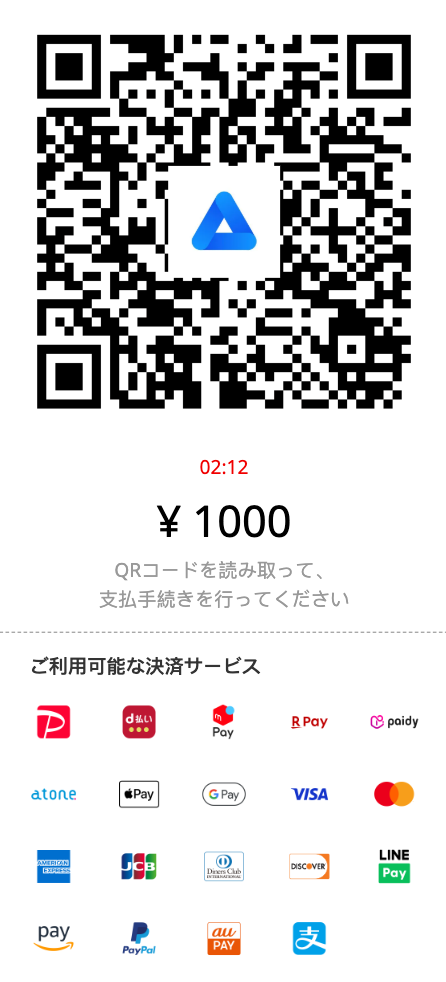 | 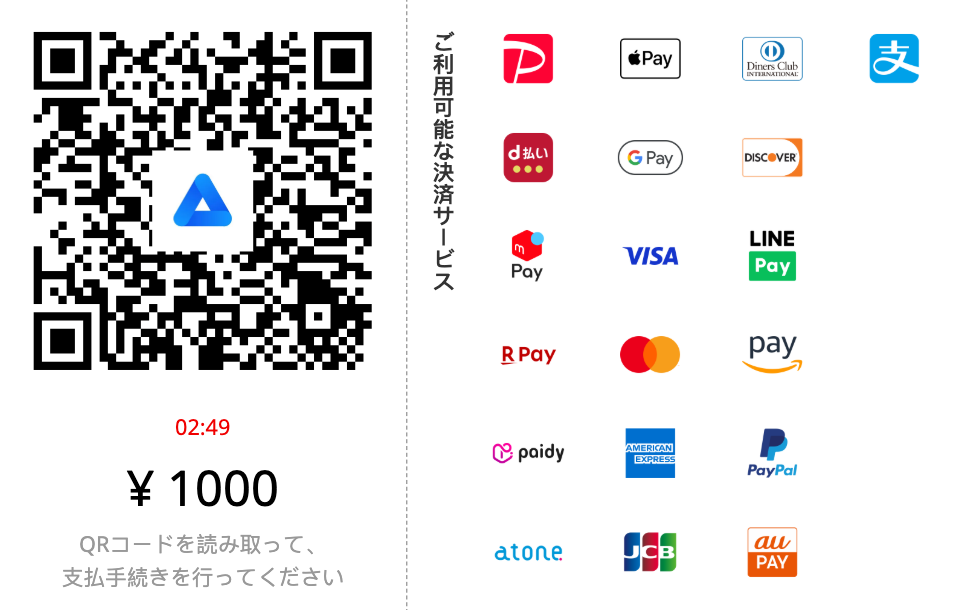 | 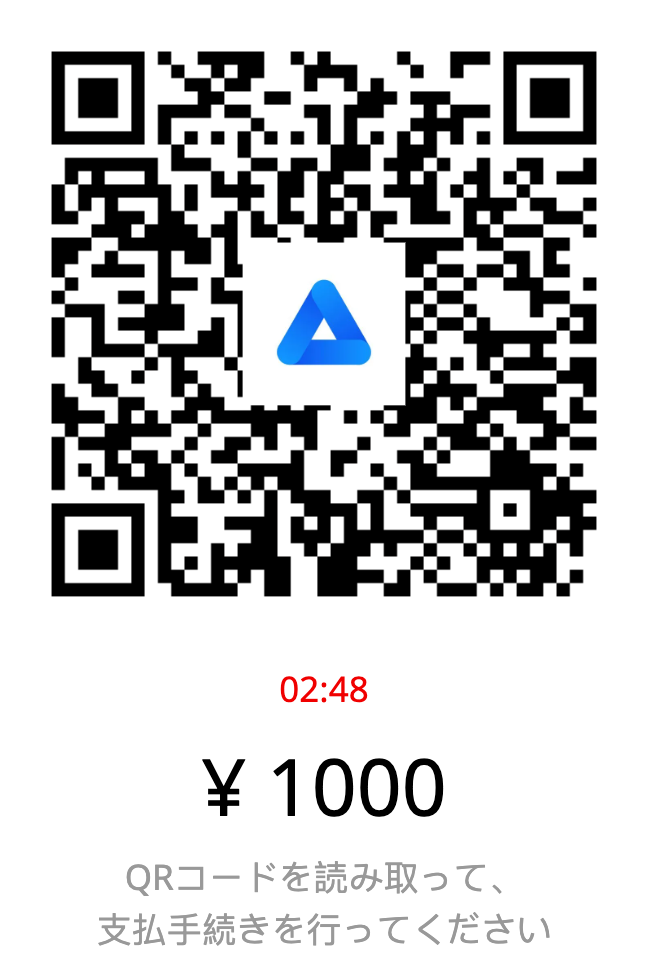 | 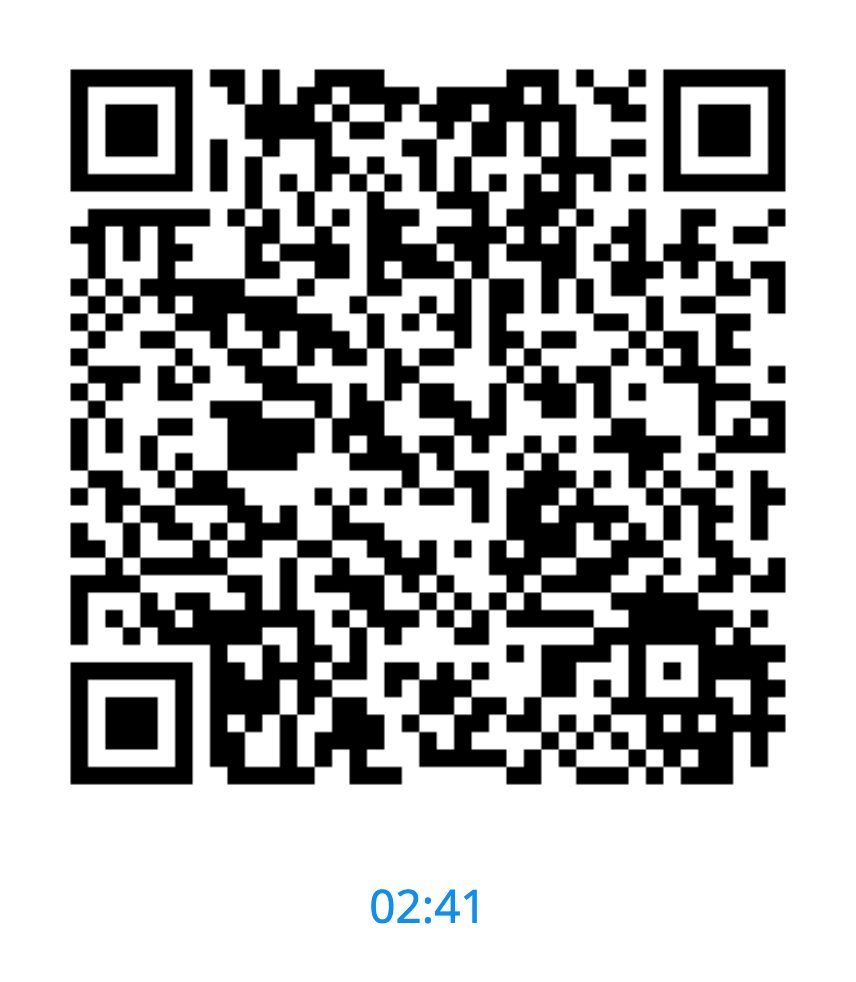 |
ステップ3:お客様が支払いを完了し、支払い状況を処理
Widget は、支払いの進行状況を検知するためのイベントを提供しています。
| 進行状況 | |
|---|---|
| 支払い成功 | widget.on('success', function (event, codeObject) {// 決済完了後処理 }); |
| 支払い期限切れ | widget.on('expired', function (event, codeObject) {// 新しいEasyQRコードを生成するなど }); |
| 支払いエラー | widget.on('error', function (event, error) { // エラー処理 }); |
| ウィジェットを破棄 | widget.destroy(); |
他の設定
CheckoutページのUIカスタマイズ
お客様が見るCheckoutページは、elepayの[簡単決済>設定>基本設定] でアイコンやカラースキームなどを調整できます。
決済方法の設定
elepay の[簡単決済>設定>決済方法管理] で利用可能な決済方法の管理(確認・有効化・無効化)が可能です。今後追加される支払い手段も、すぐに利用できます。
ロケーション情報を追加
EasyQRコードの作成時にロケーション情報を追加できます。また、elepayの[ロケーション]で管理可能です。
最終更新日